
A few months ago, I talked to a business owner who said something I hear all the time: “My website was fine yesterday. I don’t know what happened.” Overnight, their site went down. Contact forms stopped working. Traffic dropped. Nothing dramatic had changed, at least not on the surface.
What actually happened was simple. The website had not been maintained for months. One outdated plugin conflicted with a server update, and everything broke. This is exactly how most website problems start in 2026. Quietly. Then all at once.
Website maintenance is no longer about fixing emergencies. It is about preventing them.
Why Website Maintenance Matters In 2026
Let me ask you something. When was the last time you checked your website beyond looking at the homepage? Most business owners assume that if the site loads, everything is fine. In reality, websites can look “normal” while serious issues are building in the background.
Modern websites depend on many systems working together: content management systems, plugins, themes, hosting environments, and third-party tools. When one of these changes, the others must keep up. If they don’t, the website becomes unstable.
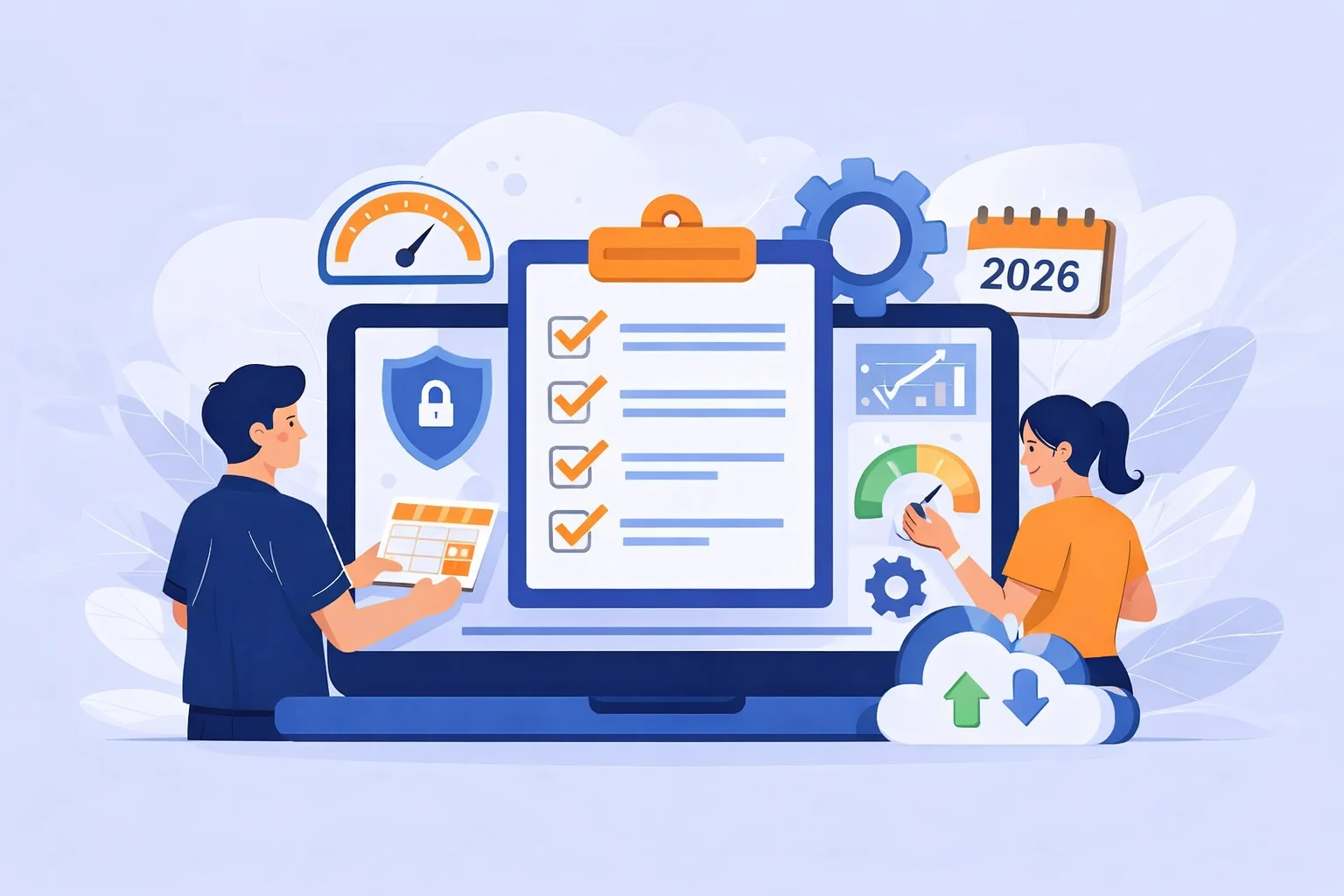
A checklist is only effective when it’s followed consistently. That’s why many businesses rely on ongoing website maintenance to make sure updates, security checks, and performance tasks are never missed.
In 2026, search engines expect websites to be fast, secure, and reliable. Users expect the same. When maintenance is ignored, rankings slowly drop, users leave faster, and trust erodes without warning.
These are website maintenance checklist for 2026 you have to know.
1. Updates Are Important, Even When Everything Works
One of the biggest myths I hear is: “I don’t want to update anything because the site is working.” That mindset causes more problems than updates ever do.
Updates exist for a reason. They fix security holes, remove bugs, and keep your website compatible with new technologies. Most hacks today don’t happen because a site is popular. They happen because something is outdated.
In 2026, proper updates include the CMS core, plugins, and themes. But here’s the important part: updates should be handled carefully. They need testing, backups, and monitoring. Updating blindly can cause issues, but avoiding updates guarantees them.
Update your website is important, because if youre not you will face a lot of problem. This is the reason why you have to keep your website updated :
Why You Have to Update Your Website
- Show That Your Business Is Still Active
If a website is rarely updated, it can look abandoned. Small updates help visitors see that your business is still running and being taken care of.
- Improve the User Experience
Updating your website helps fix broken links, improve page flow, and make navigation clearer. This makes it easier for visitors to find what they need.
- Stay Competitive
Other businesses are constantly improving their websites. Updating yours helps you keep up and stay relevant in your industry.
- Improve SEO Performance
Search engines prefer websites that are updated regularly. Refreshing content and fixing technical issues can help your site perform better in search results.
- Increase Engagement and Traffic
New content and small improvements can encourage visitors to stay longer and come back again.
- Keep Your Website Secure and Compatible
Updates help prevent security issues and ensure your website works well on modern browsers and devices.
Now i will also tell u how to update your website. U can do it by your self but if youre a business owner or you are to busy for figure it out, you can hire a profesional website maintenance service.
How to Update Your Website Properly
Updating a website doesn’t always mean rebuilding everything. You can start small and improve step by step.
1. Review Your Website Content
Go through each page and ask:
- Is this information still accurate?
- Does this text clearly explain my service?
- Are there any outdated images or offers?
Remove anything that no longer represents your business.
2. Check Performance and User Behavior
Look at basic data like:
- Which pages people visit most
- Which pages they leave quickly
This helps you focus updates on pages that matter most.
3. Improve Design and Layout
You don’t need to follow every trend, but your site should:
- Look clean and readable
- Use consistent colors and fonts
- Be easy to use on mobile
Small design improvements can make a big difference.
4. Update Visual Content
Replace low-quality images. Add visuals that support your message, such as:
- Service screenshots
- Short videos
- Real photos of your work
Good visuals keep visitors engaged longer.
5. Optimize for Search Engines
Make sure:
- Page titles describe what the page is about
- Images have clear alt text
- URLs are simple and readable
This helps search engines understand your content better.
6. Test Before Publishing
After making changes:
- Check your site on mobile and desktop
- Click all buttons and links
- Make sure pages load correctly
Once everything works, publish your updates.
Simple Tip
You don’t need to update everything at once. Even small, regular improvements are better than waiting years to make changes.
2. Security Issues: Small Problems Can Become Big Risks
Most cyber attacks don’t start with advanced hacking techniques.
They usually begin with small weaknesses that are ignored for too long.
Things like:
- Outdated software
- Weak passwords
- No regular monitoring
Over time, these small issues stack up and create serious security risks.
Security problems rarely announce themselves. They don’t show up as warning messages on your homepage. They start with small weaknesses: an old plugin, a weak login, or no malware monitoring.
I’ve seen businesses discover security issues only after customers complained about strange redirects or spam emails. By then, the damage was already done.
Good maintenance means regular security checks, malware scanning, and access control. It means knowing something is wrong before users notice it. In 2026, security is not about paranoia. It is about professionalism.
Signs Your Website Might Be Affected by a Cyber Attack
Many website owners don’t realize their site is compromised until real damage happens. Here are common warning signs to watch for :
- Your Website Suddenly Becomes Slow
If your site loads much slower than usual without traffic spikes, it could be running malicious scripts in the background.
- You See Strange Content or Links
Unexpected pages, spam links, or unfamiliar text may appear on your website. This often means attackers injected malicious code.
- Users Report Being Redirected
Visitors may say your site redirects them to random or unsafe websites. This is a strong sign of malware infection.
- You Lose Access to Your Website
If your login details stop working or settings change without your action, your site may be taken over.
- Security Warnings Appear
Browsers or search engines may warn users that your site is unsafe. This usually happens after malicious activity is detected.
First Protection Steps You Should Take
You don’t need to panic or rebuild everything. Start with these basic but effective protections.
Update Everything Regularly
Outdated systems are one of the most common attack points.
Always keep your:
- CMS (WordPress, Wix, etc.)
- Plugins or apps
- Themes
up to date.
Use Strong Login Security
Weak passwords make attacks easy.
Start with:
- Strong, unique passwords
- Two-factor authentication (2FA)
- Limiting login attempts
Install Basic Security Monitoring
Security tools help detect problems early.
They can:
- Monitor suspicious activity
- Block repeated failed logins
- Alert you when files change unexpectedly
Early detection prevents bigger damage.
Back Up Your Website
Backups are your safety net. If something goes wrong, you can restore your site quickly without losing everything.
Best practice:
- Automatic backups
- Stored separately from your main website
Limit Access
Only give admin access to people who truly need it. Remove old users and unused accounts, fewer access points mean fewer risks.
Why Small Actions Matter
Cyber issues rarely happen overnight, they grow quietly from small neglects. Regular updates, basic monitoring, and simple security habits:
- Reduce downtime
- Protect your data
- Keep customer trust
Small actions today prevent big problems later.
3. Backups Make Problems Easier to Fix
Here’s another conversation I hear often: “We thought backups were running.” Then something breaks, and there is nothing to restore.
Backups are your safety net. When updates fail, sites get hacked, or servers crash, backups are what allow you to recover quickly instead of rebuilding from scratch.
A proper backup system runs automatically, stores copies off-site, and allows fast restoration. In 2026, manual backups are not enough. If your backup system depends on someone remembering to click a button, it will fail eventually.
Why Backup Is Extremely Important
1. Protect Against Human Errors
People make mistakes accidentally deleting files or overwriting important documents happens all the time. Without backup, these mistakes can become permanent.
2. Shield Against System Failures
Devices can fail unexpectedly due to power outages, hardware issues, or software bugs. Backup ensures your data isn’t lost when the system fails.
3. Defense Against Cyberattacks
Malware, ransomware, and other cyber threats can corrupt or encrypt data. With recent data breaches and ransomware incidents prevalent, backing up data gives you a way to recover without paying ransom.
4. Minimize Business Downtime
Losing critical data can stop business operations, impact customer trust, and damage reputation. Backup allows businesses to restore operations quickly and continue working.
The Impact When Backup Is Missing or Fails
When there is no effective backup strategy in place:
- Data might be gone forever
Without backup copies, some files cannot be recovered even with recovery tools.
- Business operations may stop
Companies may face downtime, loss of revenue, and disrupted services.
- Reputation damage
Clients and customers may lose trust if services or data can’t be restored quickly.
- Financial loss
Recovering lost data without backups can be expensive, slower, or in some cases impossible.
How to Handle Data Backup and Recovery
Here’s a clear step-by-step structure to manage backups and handle data loss effectively:
1. Create a Backup Plan
Define what data you need to back up, how often backups will run, and who is responsible for managing the process.
2. Choose the Right Backup Solution
Select tools or platforms (cloud services, local storage, hybrid models) that fit your needs. Cloud backups often provide automation, security, version control, and scalability.
3. Use Cloud Sync and Versioning
Automatic synchronization and versioning help ensure that updated versions of files are always backed up and can be restored from earlier versions if needed.
4. Regular Testing
Regularly test your backups by restoring files. This makes sure backups are valid and recoverable when you really need them.
5. Implement Protection Measures
Use encryption, access control, and offsite storage to protect backup data from unauthorized access and local disasters.
6. Review and Update
Backup strategies should be updated as technology and data volumes evolve. Regular review keeps the plan effective.
6. Best Practices You Should Know
✔ Backup frequently — daily or weekly based on how often your data changes.
✔ Use multiple backup copies — having more than one copy reduces risk.
✔ Store backups offsite — this protects data against local disasters.
✔ Encrypt backup data — security is critical to prevent data breaches.
Conclusion (Closing Summary)
Data backup and recovery are not optional they are essential for protecting your valuable data against errors, cyber threats, system failures, and disasters. A good backup strategy minimizes loss, supports business continuity, and helps you restore data quickly when errors happen.
4. The Impact of Speed Performance on User Experience
Let’s talk about speed. Slow websites rarely feel slow to the person who owns them. Cached pages, fast connections, and familiarity hide the problem. New visitors don’t have that advantage.
If your site takes a few seconds too long to load, users leave. Search engines notice this behavior and lower your rankings. The result is less traffic, fewer leads, and no clear explanation unless you look closely.
Performance maintenance means monitoring load times, reviewing Core Web Vitals, and removing unnecessary scripts or plugins. It is not about perfection. It is about staying competitive.
How Speed Performance Affects User Behavior
Speed performance influences users in several ways:
- First impressions
Users judge your website within seconds. Slow loading creates a negative first impression. - Engagement
Slow pages reduce scrolling, clicks, and time spent on the site. - Bounce rate
The slower the site, the higher the chance users leave immediately. - Conversions
Speed impacts sign-ups, purchases, and contact form submissions. A fast website feels reliable. A slow one feels risky.
How to Check Speed Performance Regularly
Regular speed checks help you detect issues before users notice them.
1. Use Speed Testing Tools
You can test your website speed using tools like:
- PageSpeed testing tools
- Performance audit tools
- Browser-based speed testers
These tools show:
- Loading time
- Performance scores
- Areas that need improvement
2. Test Both Desktop and Mobile
Mobile users often experience slower connections. Always check:
- Desktop performance
- Mobile performance
A site that is fast on desktop may still be slow on mobile.
3. Monitor Speed After Changes
Check speed after:
- Website updates
- Plugin installations
- Theme changes
- Content uploads
Small changes can slow down performance over time.
4. Track Speed Consistently
Speed performance should be checked:
- Weekly for active websites
- Monthly for stable websites
Regular checks help maintain consistent performance.
5. Fix Issues Early
When speed problems are detected:
- Optimize images
- Remove unused plugins
- Improve caching
- Review hosting performance
Early fixes prevent bigger issues later.
Key Point to Remember
Speed performance is not a one-time task, it needs regular monitoring and maintenance. A fast website keeps users happy, engaged, and confident while a slow one quietly drives them away.
5. SEO Performance Suffers Without Technical Care
SEO is often treated as content and keywords only. In reality, technical health plays a huge role. Broken links, indexing issues, and crawl errors can slowly erase the impact of good content.
I’ve seen websites with strong articles lose traffic simply because technical problems blocked search engines from accessing important pages. Without maintenance, these issues sit unnoticed.
Regular SEO health checks make sure search engines can crawl, index, and trust your website. In 2026, ignoring technical SEO is one of the fastest ways to lose visibility.
SEO Impacts You Should Know
- Lower rankings
Search engines prioritize websites that are fast, stable, and technically healthy. - Pages not indexed
Technical errors can prevent important pages from appearing in search results. - Reduced crawl efficiency
Search bots waste time on broken or duplicate pages instead of valuable content. - Poor user signals
Slow speed and errors increase bounce rates, which negatively affects SEO.
Why Technical Care Matters
Technical maintenance keeps:
- Website structure clean
- Speed performance stable
- Errors under control
- Search engines able to understand your site
SEO is not only about content. Without technical care, even great content can fail to rank.
6. Downtime Costs More Than People Think
Most businesses don’t realize their website is down until someone tells them. By then, leads have been lost and trust damaged.
Uptime monitoring solves this by alerting you the moment something goes wrong. It turns downtime from a surprise into a manageable issue. In 2026, this is basic infrastructure, not an extra feature.
7. Content and Features Need Maintenance Too
Maintenance is not only technical. Content becomes outdated. Forms stop sending emails. Pricing pages show old information. These small issues create confusion and reduce conversions.
Regular checks ensure that what users see matches the current reality of your business. A website should reflect where your business is now, not where it was years ago.
Why Website Maintenance Is a Business Decision
Website maintenance is often seen as a technical expense. In reality, it protects revenue, rankings, and reputation. A maintained website supports growth quietly. An ignored website creates sudden emergencies.
In 2026, maintenance is not about perfection. It is about consistency. Businesses that maintain their websites avoid crises and build trust over time.
Final Thought
One of the most common questions in any maintenance checklist is how often to update WordPress, especially when it comes to plugins, themes, and core files that directly affect security and performance.
To keep this checklist working long term, adding monthly website health checks helps you catch issues like slow pages, broken links, or downtime before they impact users and search rankings.
Most website problems are preventable. They happen because maintenance is postponed, not because technology is unreliable. If your website matters to your business, maintaining it is not optional. It is part of running a professional operation.


2 Responses