
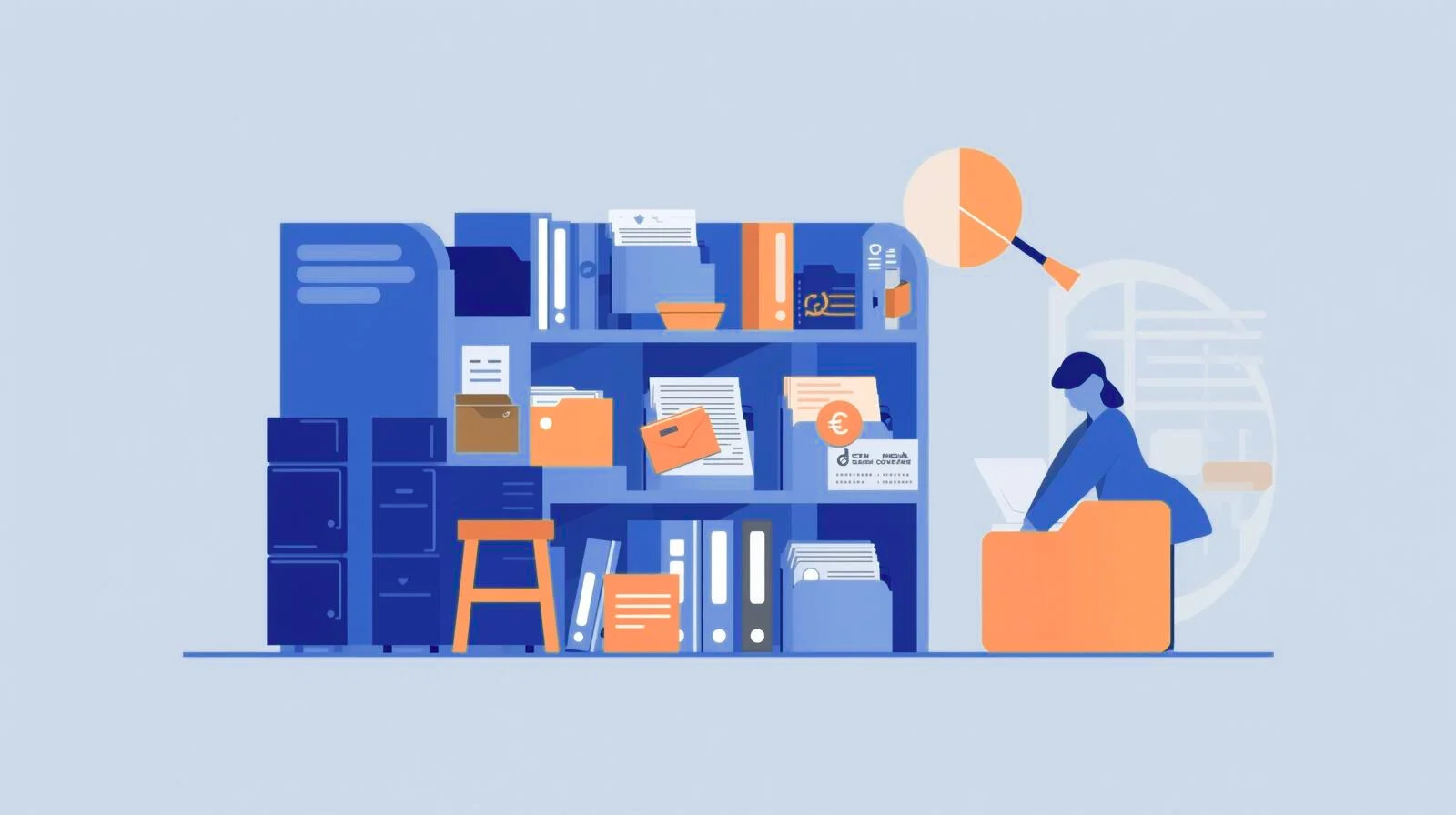
It’s great to run a WordPress website, until you discover that hundreds or even thousands of files you hardly remember uploading are in your media library. Clean up your WordPress media library before it gets out of control. Old photos from previous posts, unused PDFs, duplicate images, sporadic screenshots all of these things are just hanging there, silently consuming space and possibly slowing down your website.
Not only can a disorganized media library be an eyesore, but it may also slow down your website, make managing material difficult, and even have an effect on SEO. The good news? You can clean up your WordPress media library without being a technical expert. With the right strategy, you can arrange everything, free up storage, and simplify future site management.
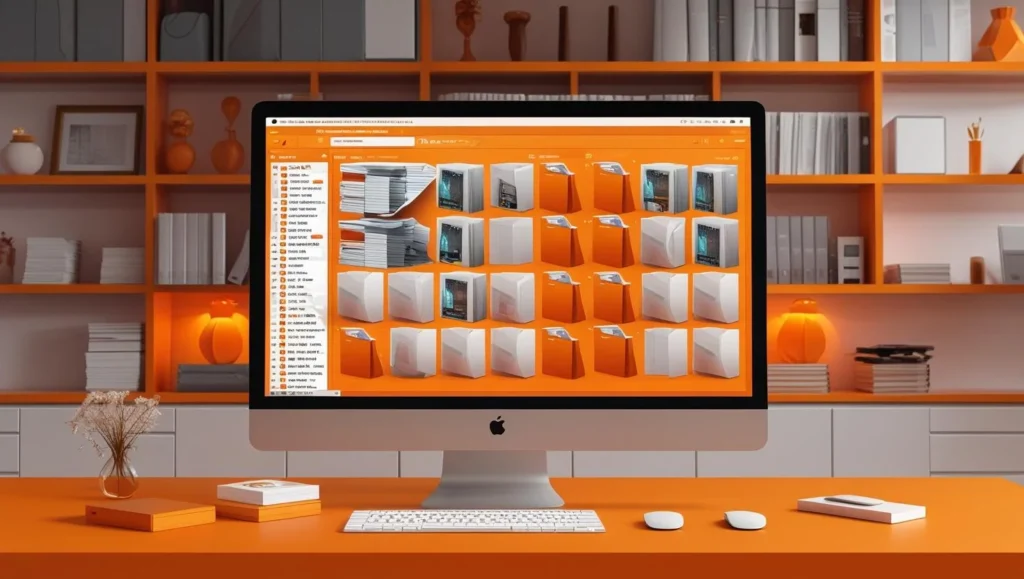
Why It’s Important to Clean Up Your WordPress Media Library ?
Here’s why your site may suffer if you ignore the mess:
- A website with too many large – unused photos may load more slowly.
- Storage expenses rise – If your hosting plan has storage constraints, clutter consumes your available space.
- Files are harder to find – It takes time to upload or reuse media in a disorganized library.
- Potential SEO impact – Performance is a ranking criteria for Google, and large, poorly optimized media can have an influence.
Consider it similar to organizing your room then you don’t have to get rid of everything, but it does make life easier.
Step 1: Audit Your Media Library
Before you delete anything, take a look at what you have
- In your WordPress dashboard, select Media → Library.
- To view file details more easily, switch from grid view to list view.
- Pay attention to files that are clearly out-of-date or useless.
Expert advice: Don’t remove a file just yet if you’re unsure if it’s being utilized. You can find unused media with the use of plugins (more on that below).
Step 2: Use a Plugin to Find Unused Files
It would take ages to manually check each file. Because of this, using technologies such as
- Media Cleaner: Looks for media on your website that isn’t connected to any pages or posts.
- WP-Optimize: Removes unnecessary files and database entries.
- Asset CleanUp: Assists in managing the files that load on every page.
Before using any cleanup plugins, make sure you have a backup of your website. You don’t want to accidentally delete something crucial without a backup plan.
Step 3: Remove Duplicate Files
Sometimes you’ll find the same image uploaded multiple times with different names. This happens if you:
- Uploaded the same image for different posts
- Made edits and re-uploaded without deleting the old version
- Imported content from another site
Plugins like Media Deduper can help you find and remove duplicates quickly.
Step 4: Optimize Images
Cleaning up isn’t just about deleting files it’s also about making the remaining ones smaller and faster to load.
Use image optimization tools like:
- Smush – Compresses images without losing quality
- ShortPixel – Offers advanced compression
- Imagify – One-click optimization for existing images
Optimized images improve your site speed, which helps both users and SEO.
Step 5: Organize with Folders
WordPress automatically keeps media in a single folder according to the date of upload. That works well for small websites, but you’ll need a better approach if you post a lot of information.
You can categorize files by project, topic, or kind by creating categories or folders for your media using plugins like FileBird or Folders. This greatly speeds up the process of discovering photographs.
Step 6: Set a File Naming System
Instead of uploading “IMG_1234.jpg,” name your files with keywords that make sense. For example:
wordpress-media-cleanup-guide.jpghomepage-banner-2025.jpg
This not only helps you stay organized but also gives your images an SEO boost.
Step 7: Schedule Regular Cleanups
The best way to avoid a messy library again is to schedule cleanups just like you might schedule site backups or updates.
- Monthly – Small cleanups for new unused files
- Quarterly – A deeper review with optimization
- Yearly – Big cleanup for unused old files and archive maintenance
Bonus Tips for Keeping Your Library Clean
- Delete unused drafts – Old drafts may have images you don’t need.
- Limit file sizes – Set upload size limits to prevent huge files from slowing your site.
- Use a CDN – Store and deliver images from a content delivery network for faster load times.
- Train your team – If others upload to your site, make sure they follow the same rules.
The Payoff of a Clean Media Library
Once you’ve done a WordPress media library cleanup, you’ll notice:
- Faster page loads
- Easier media search
- Less storage use
- Better overall site performance
It’s a small investment of time that pays off in better SEO, happier visitors, and less stress for you as a site owner.
Final tip :
A clean media library is like a tidy desk it makes you more productive and keeps your visitors happy. Take an hour this week to give yours some attention. And if you’d rather not deal with it, ManageMySite can help keep your WordPress clean and clutter-free.


