
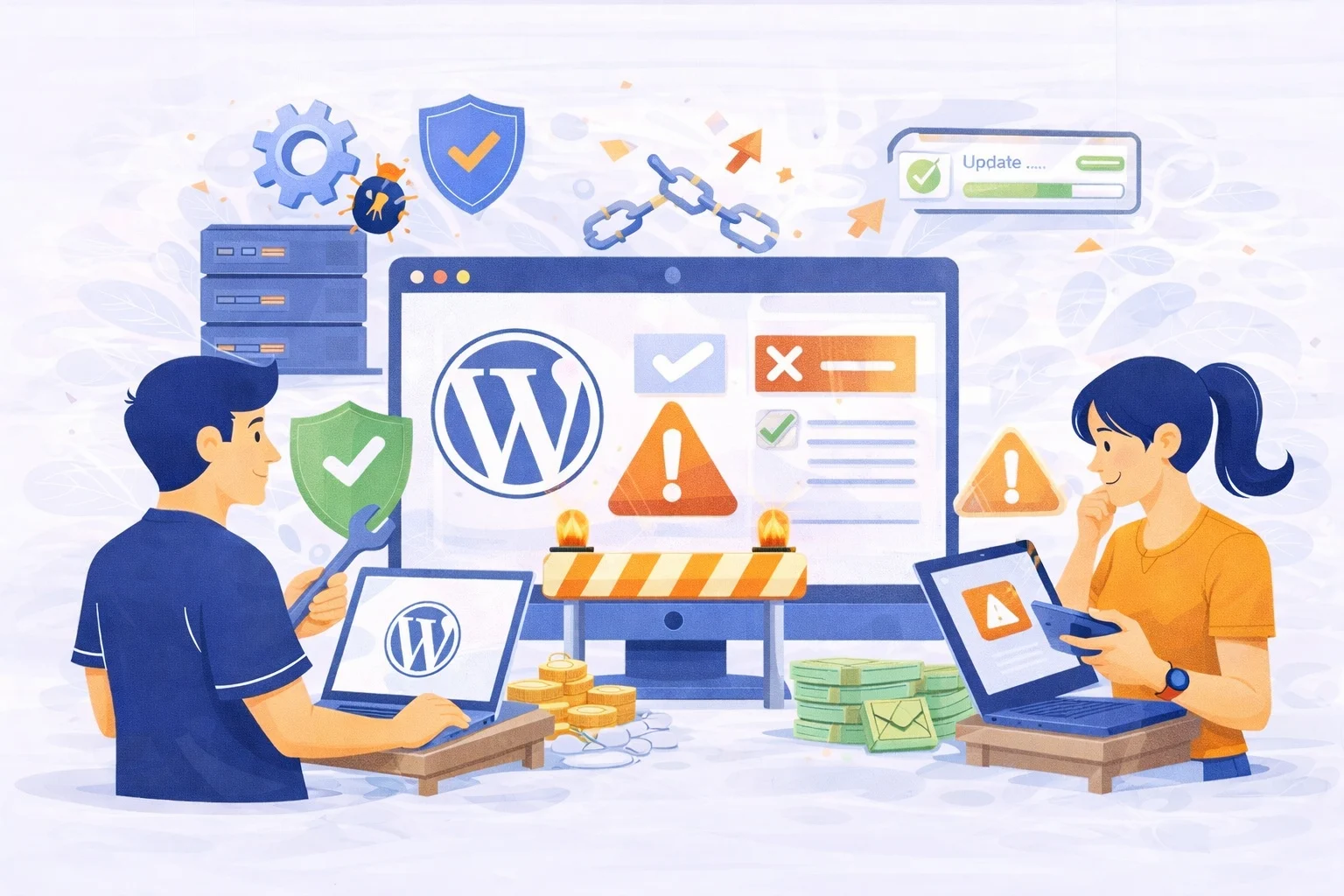
How to prevent site breaks after updates is a question that haunts every website owner the moment they see that little red notification circle in their dashboard. We all know that clicking “Update” is essential for security, but the fear of the “White Screen of Death” is real. When WordPress updates go wrong, they don’t just mess up your afternoon; they can take your entire business offline.
If you’ve ever wondered how to prevent site breaks after updates without needing a computer science degree, you’re in the right place. In this guide, we’ll break down why these crashes happen and the professional workflow that keeps your site bulletproof.
Why WordPress Updates Can Break Your Site
Site breaks after updates usually happen because of a “communication breakdown” between different layers of your website. WordPress is an ecosystem where the core software, your theme, and your plugins all have to play nice together.
Plugin and Theme Compatibility Issues
WordPress updates often change the “rules” of how code is read. If your plugin developer hasn’t updated their code to match the new version of WordPress, the two will clash. This conflict is the #1 reason for a broken layout or a site that won’t load.
PHP and WordPress Version Conflicts
PHP versions are the engine of your server. If you update WordPress to a cutting-edge version but your hosting is still running on an ancient version of PHP, the site will crash. You can check the official WordPress requirements to ensure your server is up to date. Keeping these two aligned is a core part of WordPress maintenance.
Poorly Coded Plugins or Themes
Poorly coded software is a ticking time bomb. Some developers use “hacks” to make features work. When a major WordPress update rolls out, it often closes those loopholes, causing the “hacked” plugin to fail instantly.
Server and Hosting Limitations
Server resources are heavily taxed during an update process. If your hosting plan is too weak or runs out of memory while it’s trying to rewrite files, the update will hang, leaving your site in “Maintenance Mode” indefinitely.
Common Signs Your Site Is at Risk Before Updating
Site breaks after updates are rarely random. If you look closely, there are usually warning signs that your site is vulnerable before you even click the button.
Outdated Plugins and Themes
Outdated software is high-risk. If you haven’t updated in six months, jumping straight to the newest version is dangerous. Large “leaps” in version numbers are much more likely to cause errors than small, incremental changes.
No Recent Backups
Missing backups mean you are working without a net. If you don’t have a fresh copy of your site stored safely off-site, you are one click away from losing your data. It is vital to follow WordPress database backup best practices to stay safe.
Too Many Unused Plugins
Plugin hoarding creates unnecessary complexity. Every active plugin is a potential point of failure. If you have 30+ plugins, your risk of a conflict during WordPress updates triples.
How to Prevent Site Breaks After WordPress Updates
How to prevent site breaks after updates comes down to following a “Safety-First” workflow. If you follow these four steps, you will almost never have to worry about a crash again.
Always Create a Full Backup Before Updating
Manual backups are your insurance policy. Before you touch anything, use a plugin like UpdraftPlus to send a full copy of your site to Google Drive or Dropbox. If the update fails, you can “Undo” the damage in seconds.
Update Plugins and Themes One by One
One-by-one updates allow you to play detective. Never click “Update All.” By updating them individually and checking your site after each one, you’ll know exactly which plugin caused the problem if something goes wrong.
Test Updates on a Staging Site
Staging environments are the “pro secret” to zero downtime. A staging site is a private clone of your website. You run your WordPress updates there first. If it breaks, your live customers never see a thing.
Keep WordPress Core and PHP Versions Aligned
Version alignment is critical. Check your hosting dashboard to ensure you are running PHP 8.1 or higher. A modern server environment is the best defense against site breaks after updates.
Pro Tip: Preventing update issues is a key part of WordPress maintenance. It’s much cheaper to maintain a site than to pay for an emergency repair.
Best Practices for Safe WordPress Updates
Safe updates are about timing and preparation. Following these habits will keep your site running smoothly year-round.
- Update during low-traffic hours: Don’t update during your busiest sales time.
- Read plugin changelogs: Look for the words “Major Update” or “Breaking Changes.”
- Avoid automatic updates for major versions: Keep control in your hands for big changes.
- Monitor your site immediately: Check your contact forms and checkout page after every update.
What to Do If Your Site Breaks After an Update
Site breaks after updates can be scary, but they are fixable. If you see an error, stay calm and follow these steps:
- Restore your backup: Get the site back online immediately.
- Disable plugins via FTP: If you’re locked out, rename the plugins folder to “deactivate” everything.
- Roll back the update: Use the WP Rollback plugin to return to the previous version.
- Contact professional support: If you’re stuck, reach out to a maintenance expert.
Should You Handle Updates Yourself or Use a Maintenance Service?
Handling WordPress updates yourself is a great way to learn, but it takes time and carries risk. For business owners, your time is better spent growing your brand than troubleshooting code.
- Risks of DIY: Potential downtime, lost SEO rankings, and high stress.
- Benefits of Professional Maintenance: 24/7 monitoring, secure staging, and expert fixes.
🚀 Ready to Stop Fearing the Update Button?
How to prevent site breaks after updates shouldn’t be your full-time job. Let our experts handle the technical heavy lifting, backups, and security for you. Explore Our WordPress Maintenance Plans Today
Frequently Asked Questions
Can WordPress updates break my site?
Yes. Compatibility gaps between the core, themes, and plugins are the most common cause of site crashes.
How often should I update WordPress?
We recommend checking for updates once a week. This keeps the “jumps” between versions small and manageable.
Is it safe to enable automatic updates?
It is safe for minor security patches, but major version updates should always be done manually so you can monitor for changes. Security is vital because of global website security threats, but controlled updates are always safer.


